
WordPress is one of the most popular web content management systems in the world along with its challenges. While using it we have to face many errors that can be fatal, especially for those who are new to it face so much difficulty.
In this article we can discuss how to fix deadliest WordPress Critical Error which includes the dreaded “White Screen of Death,” learn about how we fix them.

What It Is:
The White Screen of Death (WSOD) is a blank screen that appears with any warning or message so it becomes more difficult to recognize what is error?
How to Fix It:
1-Enable Debugging:
Edit your wp-config.php file and add this line:
`php define(‘WP_DEBUG’, true);`
This will show error messages on your screen that will help to identify the error.
2-Disable Plugins:
Access your site via FTP and rename the plugins folder to plugins_old. This will deactivate all plugins. If the site works, rename the folder back and activate plugins one by one to find the culprit.
3-Switch to Default Theme:
Rename your active theme’s folder in wp-content/themes.
This will tell WordPress to revert to a default theme. Helping you to identify issues are in the theme or not
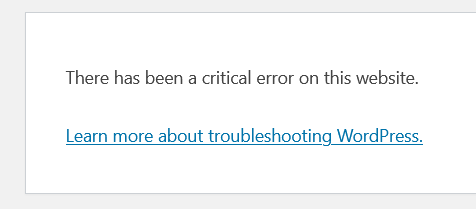
What It Is:
This error usually displays a message saying “There has been a critical error on your website.” It often results from theme issues, plugin conflicts, or memory limit exhaustion.
How to Fix It:
1-Check Your Email:
WordPress often sends an email with details about the error. WordPress sends you an email that tells details about the error. Check your site admin for clues
2-Increase PHP Memory Limit:
Open your wp-config.php file and add the following line:
`php define(‘WPMEMORYLIMIT’, ‘256M’);`
3-Deactivate Plugins/Themes:
Similar to WSOD, deactivate all plugins as described earlier to isolate the problem.
What It Is:
What does it mean website pages giving 404 error but page exists wordpress?
When you search for a page but the server couldn’t find it it will show a 404 error that tells us that that requested page is not found. It usually occurs due to broken links or incorrect permalinks.
How to Fix It:
1-Update Permalinks:
Open Settings of Permalinks in your WordPress dashboard and simply click “Save Changes” without making any changes. That will refresh the permalink structure.
2- Check for Broken Links:
It will be solved by using a plugin like Broken Link Checker to find and fix broken links on your site.
What It Is:
When your WordPress site can’t connect to the database then this error occurs. It is usually due to incorrect login credentials or issues with your web host.
How to Fix It:
The database name, username, password, and hostname are correct in the wp-config.php file must be correct.
2-Repair the Database:
Put the following line to your wp-config.php file to enable database repair:
`php define(‘WPALLOWREPAIR’, true);`
Then access http://yourdomain.com/wp-admin/maint/repair.php to repair the database.

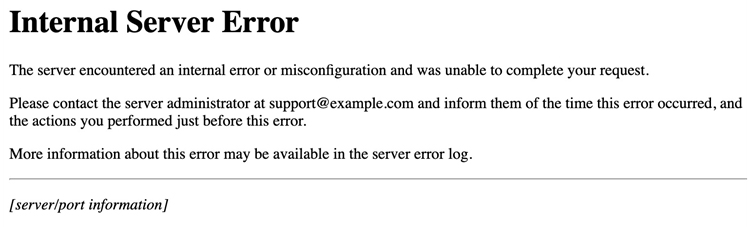
What It Is:
A generic wordpress error 500 indicating something has gone wrong on the server, often related to permissions or corrupted .htaccess files.
How to Fix It:
Access your site via FTP and rename the .htaccess file to .htaccess_old.
After it, navigate to your Wp-admin area or dashboard and then Go to Settings → Permalinks and Click Save Changes. This would generate a new .htaccess file
Make sure that the file permissions for your WordPress files are set to 755 for folders and 644 for files.
You need companies that fix WordPress Critical Error like Jethosts. WordPress errors must be hectic but they can be solved by little troubleshooting. By understanding these common errors and following the given steps you can solve them. After this you can get your site back online quickly. If you find yourselves stuck with these types of errors or maybe overwhelmed with errors, don’t hesitate to Contact Us. We are available for help you in solving WordPress Critical Error.


